Ze Assist, the AI assistant in Zebill
Your bills, entered for you. Saved only by you.
Attach a purchase bill, a receipt or a bank statement. Ze Assist reads it and fills a draft with the supplier, GSTIN, items, HSN codes and tax. You check it and click Save.
What Ze Assist does
Reads bills and receipts
Photo or PDF of a purchase bill or expense receipt becomes a draft entry, with new products flagged before they are added.
Imports bank statements
A PDF or photo of a statement becomes bank lines ready to match against your invoices and bills.
Answers questions
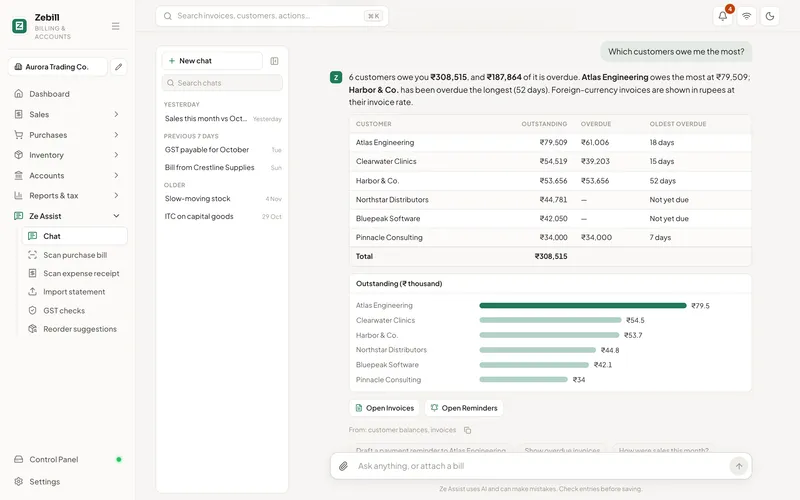
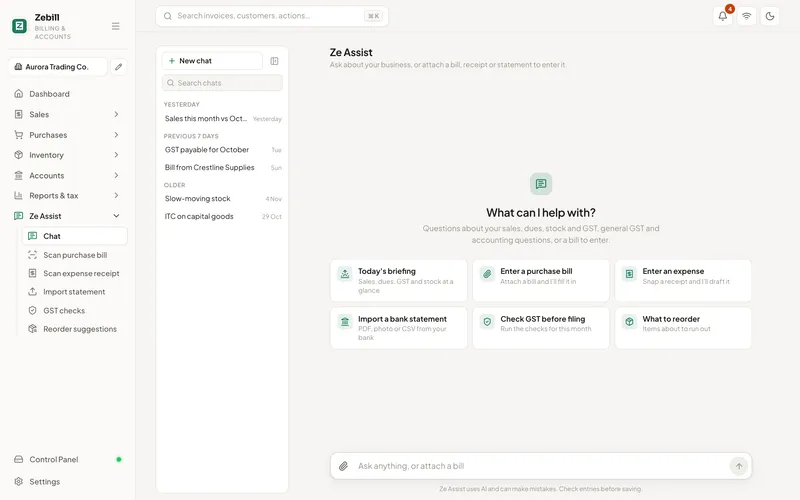
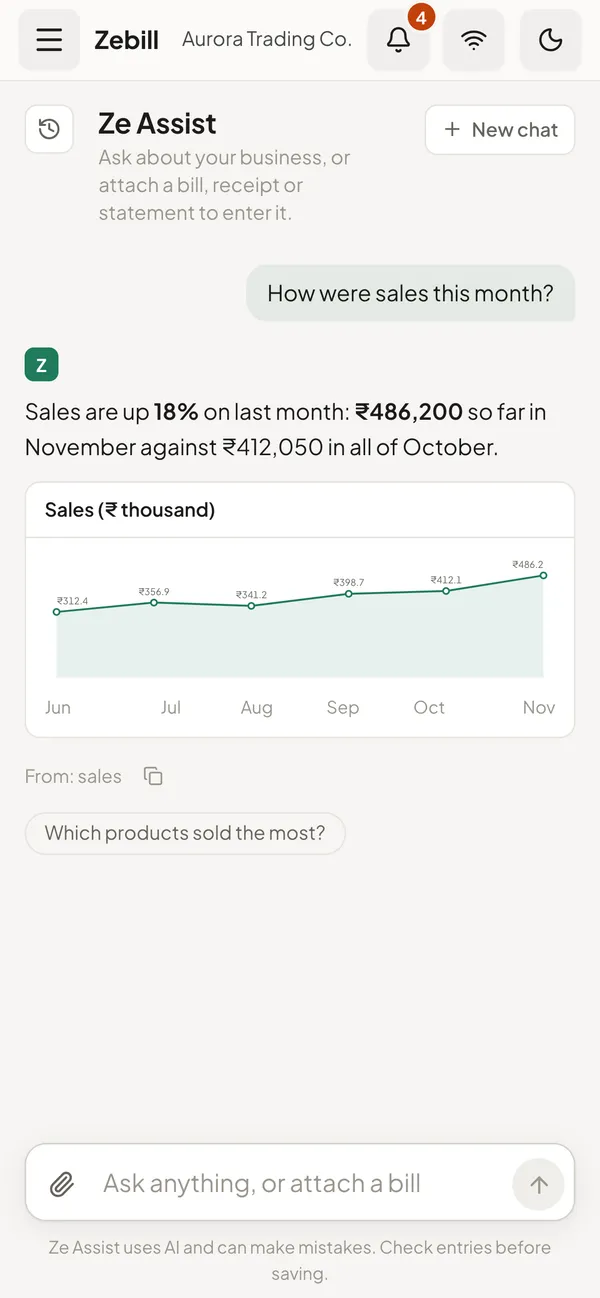
"How were sales this month?" or "Who owes me the most?" comes back as a short answer with a table or chart.
Drafts payments
Type "Northstar Distributors paid 20,000 by UPI" and get a payment draft against their open invoices to check and record.
Explains GST and accounts
General answers about GST, VAT and bookkeeping in plain English, with a pointer to the right screen.
Suggests HSN codes
While you add a product, get a suggested HSN code and GST rate to confirm, so returns start right.
Ask in plain English
Questions about your business, answered with your numbers
Ask the way you would ask your accountant. Ze Assist looks at short summaries of your records and answers with a table, a chart or a sentence, and links to the screen with the detail.
- Sales by month, by product or by customer
- Who owes you, and how late they are
- What is running low, and what to reorder
- Saved chats you can go back to
The morning briefing
Start the day knowing what needs doing
Each morning the dashboard shows yesterday's sales, overdue invoices, bills you need to pay, returns that are due and customers to follow up. It is worked out on your computer from your own records, so it needs no internet.

Privacy by design
It reads what you send. Nothing more.
Ze Assist is off until you switch it on. When it is on, it only goes online when you press one of its buttons or send a message.
- You choose what it sees. One bill, one statement or one question at a time.
- Drafts, never surprises. Nothing is saved without your click.
- Nothing in the background. No automatic uploads of your books.
- Easy to turn off. Switch Ze Assist off and Zebill still does everything else, offline.
How a bill becomes a draft, step by step
- Turn Ze Assist onIt is off until you switch it on in Settings. Until then Zebill works exactly the same, with no internet needed.
- Attach one documentPhotograph a purchase bill or an expense receipt, or choose a PDF. You decide what is sent, one document at a time.
- Read the draftZe Assist fills in the supplier, GSTIN, date, items, HSN codes and tax. New products it does not recognise are flagged before they are added.
- Correct what is wrongFix any line it misread, such as a smudged quantity or a wrong rate. Treat the draft as a first pass by a helpful assistant.
- Save it yourselfNothing reaches your books until you click Save or Record and confirm. If you close the draft, nothing is saved.
Who uses it, and for what
- A shop owner with a stack of supplier bills. Photographs each bill at the counter instead of typing items and tax by hand at night.
- A small office manager. Snaps fuel, courier and stationery receipts and turns them into expenses with a category to check.
- A founder who hates bank imports. Uploads a PDF statement and gets lines ready to match against invoices and bills.
- A trader asking quick questions. Types who owes the most, or how sales compared this month, and reads a short answer with a table or chart.
- A new business owner learning GST. Asks a plain-English question about GST or VAT and is pointed to the right screen in Zebill.
- An accounts clerk recording receipts. Types a sentence about a payment received and checks the payment draft against open invoices before recording.
The rules Ze Assist works within
Ze Assist reads documents and drafts entries. It does not decide your tax. A purchase bill is only worth claiming input tax on if it is a valid tax invoice from a registered supplier, for goods or services used in your business, and if the supplier has reported it. The draft shows you the GSTIN and tax it found, so you can check those basics before you save.
The same logic holds for the UAE. Input VAT recovery generally needs a valid tax invoice addressed to your business. If a receipt does not show the supplier’s TRN and the VAT amount, it may not support a recovery claim, however neatly it is entered.
Treat a suggested HSN code or GST rate as a starting point. Classification can depend on the exact product, and rates change. If you are unsure, confirm with your CA or the latest notification on the GST portal, and correct the product in Zebill so future bills use the right one.
On privacy, you choose what it sees. It goes online only when you press one of its buttons or send a message. It is not a tax adviser, and nothing it says replaces advice about your own position.
What to give it and what you get back
| You give it | You get back | You still do |
|---|---|---|
| Photo or PDF of a purchase bill | A purchase draft with supplier, items and tax | Check lines, then save |
| Expense receipt | An expense draft with a suggested category | Confirm category and tax |
| PDF or photo of a bank statement | Bank lines ready to match | Confirm matches against invoices and bills |
| A sentence about a payment | A payment draft against open invoices | Check allocation, then record |
| A question in plain words | A short answer, sometimes a table or chart | Decide what to do with it |
| A new product name | A suggested HSN code and GST rate | Confirm or correct |
Tips to get the most out of it
- Take a flat, well-lit photo. A straight photo with the whole bill in frame reads better than a curled page at an angle.
- Check the GSTIN first. It is the line that matters most for input tax, so verify it before anything else on the draft.
- Review new products before saving. A flagged product becomes a permanent record. Name it the way you want it to appear in stock.
- Use spreadsheets when you have them. A CSV or Excel statement imports directly and does not need Ze Assist at all.
- Ask short, specific questions. Who owes me the most is easier to answer well than a long paragraph with several questions.
Common questions
What does Ze Assist send over the internet?
Only what you choose: the bill, receipt or statement you attach, or the question you type, with short summaries of your records needed to answer it. Nothing is sent in the background, and Ze Assist is off until you turn it on in Settings.
Can Ze Assist change my records by itself?
No. It prepares drafts. A purchase bill, expense, payment or bank import only reaches your books when you click Save or Record and confirm.
Which documents can it read?
Purchase bills and receipts as photos or PDFs, and bank statements as PDFs or photos. Spreadsheet and CSV bank statements are imported directly, without Ze Assist.
Is Ze Assist a tax adviser?
No. It gives general GST and accounting answers and points you to the right screen in Zebill. For decisions about your own tax position, talk to your CA, and check the latest rules on the GST portal or the FTA site.
Does Zebill work without Ze Assist?
Yes, fully. Invoicing, GST returns, stock, payments, reports and backups all work without it, and without internet.
Will Ze Assist get every bill right?
No tool reads every bill perfectly. Faded print, handwriting and unusual layouts can cause mistakes. That is why every result is a draft you check before saving.
Does it work in languages other than English?
Zebill does not state language coverage for Ze Assist. Try it on a sample bill and check the draft. If a line is misread, correct it by hand.
Can my staff use it?
Anyone with access to the relevant screen can use it, within their role. Whatever they save still appears in the audit trail like any other entry.
What if I do not want it for patient or private records?
Leave it off, or do not attach those documents. Clinic and lab patient details are not sent to Ze Assist.
Let Ze Assist do the typing
Zebill is free while we are in early access. Set up your business in a few minutes and make your first invoice.