Inventory and barcodes
Stock that matches the shelf
Every sale and purchase moves your stock. Track batches and expiry dates, print barcode labels, scan with your camera, and know what to reorder before it runs out.
Inventory features
Warehouses and transfers
Stock per location, and transfers between your shop, godown and branches.
Batches and expiry
Batch numbers and expiry dates on purchases and sales, with what expires soon on the dashboard.
Scan by camera
Add products to a bill by scanning with a phone or laptop camera, or a USB scanner.
Barcodes and labels
Generate barcodes for your own products and print label sheets with price and name.
Reorder suggestions
Days of stock left and how much to order, from your real sales.
Serial and IMEI
Track phones, appliances and jewellery piece by piece, printed on the bill.
Reorder
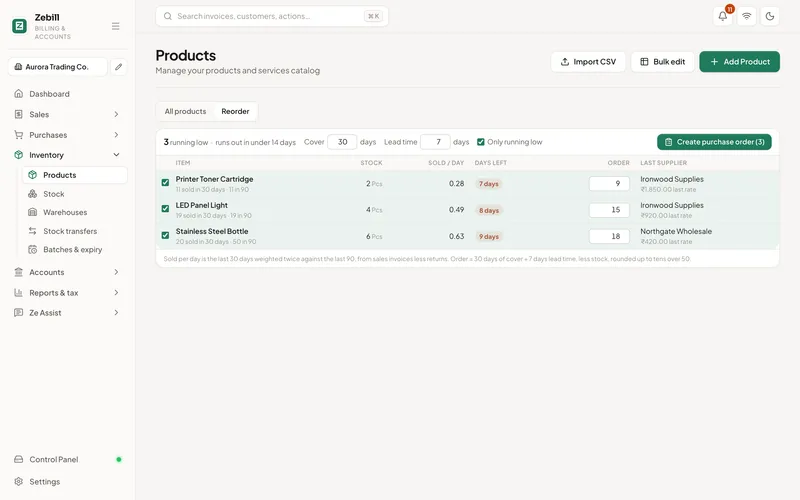
Know what to buy before you run out
Reorder suggestions use plain maths on your own sales: how fast each product sells, how many days of stock are left, and how much to order to cover the next month and your supplier’s lead time.
- Runs out soon, flagged in time to order
- Suggested order quantities, rounded sensibly
- Slow movers, with the money tied up in them
- Turn a suggestion into a purchase order
Labels
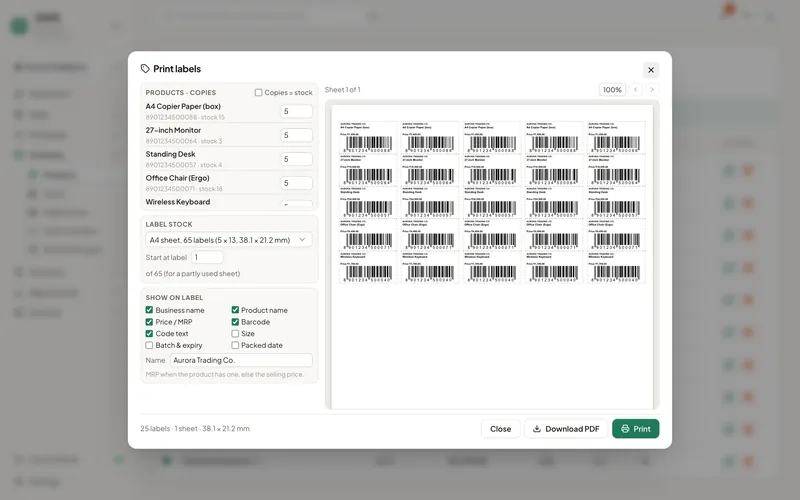
Print a sheet of labels in a minute
Pick the products, choose copies, and print barcode labels on an A4 label sheet. Every label carries the product name, price and a scannable code.
Setting up stock, step by step
- Add your productsEnter name, unit, selling price, purchase price, HSN code and tax. If a product has no barcode, ask Zebill to generate one.
- Enter opening stockRecord what is on the shelf today, per warehouse if you have more than one, so reports start from the truth.
- Receive goods through purchase billsWhen stock arrives, enter the supplier’s bill, with batch and expiry where relevant. The stock increases by itself.
- Sell and let stock fallEach sale reduces stock. Scan the barcode or pick the item, and the bill and the stock stay together.
- Count and correctCompare a physical count with the system, find the differences, and fix them so reorder suggestions work from real numbers.
Who uses it, and for what
- A pharmacy. Tracks batches and expiry, and sells the earliest-expiring stock first.
- A mobile and electronics shop. Tracks every handset by IMEI or serial so a warranty query is answered in seconds.
- A grocery or general store. Prints barcode labels for loose items and checks days of stock before the weekly order.
- A distributor with a godown. Moves stock from the godown to the shop with transfers and sees what each location holds.
- A jeweller. Keeps piece-by-piece records with serial numbers that print on the bill.
- A garment retailer. Spots slow-moving lines that have not sold in 90 days and plans a sale.
The rules behind stock and tax
Under GST, input tax credit on goods generally depends on receiving them and holding a valid tax invoice. Stock therefore ties directly to purchase bills. Entering a bill when the goods arrive, not weeks later, keeps credit, stock and payables in step.
Stock value affects profit. A business has to choose a consistent way to value closing stock, and the cost of what you sold is opening stock plus purchases minus closing stock. If your closing stock is wrong, your profit is wrong, and so is the tax and the number your bank sees. Count regularly and ask your CA which valuation method suits you.
Stock transfers between your own godowns inside one registration are movements, not sales. Moving goods between different GST registrations, or inter-state, has its own treatment and may need a document and an e-way bill when the value crosses the limit. Ask your CA before treating any transfer as a simple move.
Food, medicines and cosmetics carry expiry dates. Selling after expiry is a legal and safety matter, so use the expiry view as a working list, not an afterthought.
Stock features at a glance
| Field or feature | What it does |
|---|---|
| Batch number | Groups units received together so you can trace them |
| Expiry date | Shows what expires soon so you can sell or return it in time |
| Serial or IMEI | Tracks one piece at a time and prints on the bill |
| Warehouse | Keeps a separate stock figure for each place you store goods |
| Stock transfer | Moves quantity from one warehouse to another |
| Days of stock left | Estimates cover from recent sales speed |
| Slow moving | Lists products with no sales in 90 days |
| Barcode label | Prints name, price and code for shelf or product |
Tips to get the most out of inventory
- Name products consistently. Decide a pattern such as brand, item, size and stick to it, so search finds things fast.
- Count a small section every week. A rolling count catches errors earlier than one big count at year end.
- Add a supplier lead time. Reorder suggestions cover the next month plus lead time, so honest lead times give better orders.
- Use serial tracking only where it pays. It helps for phones and appliances, but adds scanning work for cheap items.
- Review slow movers before festive season. Discount or bundle them while there is still demand.
Common questions
Can I scan barcodes without a scanner?
Yes. On phones and laptops with a camera, Zebill can scan a barcode with the camera in browsers that support it. A USB barcode scanner works everywhere, because it types like a keyboard.
Does Zebill print barcode labels?
Yes. Generate a barcode for any product that does not have one, choose how many copies, and print a sheet of labels with the name, price and code.
How do reorder suggestions work?
Zebill looks at how fast each product sold over the last 30 and 90 days, works out how many days of stock you have left, and suggests how much to order to cover the next month plus your supplier’s lead time. Products that have not sold in 90 days are listed as slow moving.
Can I track batches and expiry?
Yes. Track a product by batch and expiry date and Zebill shows what expires soon, so you can sell the earliest first or return it in time. You can also track by serial or IMEI number.
Can I have more than one godown or shop?
Yes. Keep stock in several warehouses and move it between them with stock transfers.
What if the stock count does not match the system?
Correct the stock to the counted figure and look for the cause, such as a purchase bill not yet entered, a return not recorded or a sale billed under the wrong item. Entering purchase bills when goods arrive prevents most differences.
Can I import my product list?
Zebill supports importing from other software. See the import options for the format your previous tool uses, and test with a few rows first.
Does it track the cost of stock?
Products carry a purchase price, and profit reports use what items cost you. Ask your CA which valuation method to use for your closing stock.
Can I print labels for only some products?
Yes. Choose the products and the number of copies, and print a sheet with the name, price and code.
Get your stock in order
Zebill is free while we are in early access. Set up your business in a few minutes and make your first invoice.